Two children share one computer, but their practice should not become one combined score. Separate profiles solve the record-keeping problem. A simple weekly conversation then helps you use the records to choose each child’s next exercise.
Create one profile per child, check the selected name before starting, and review each child’s Progress page separately. Compare similar exercises over time. Keep paper work in a separate note, and export a local backup after useful practice has accumulated.
1. Set up two independent profiles
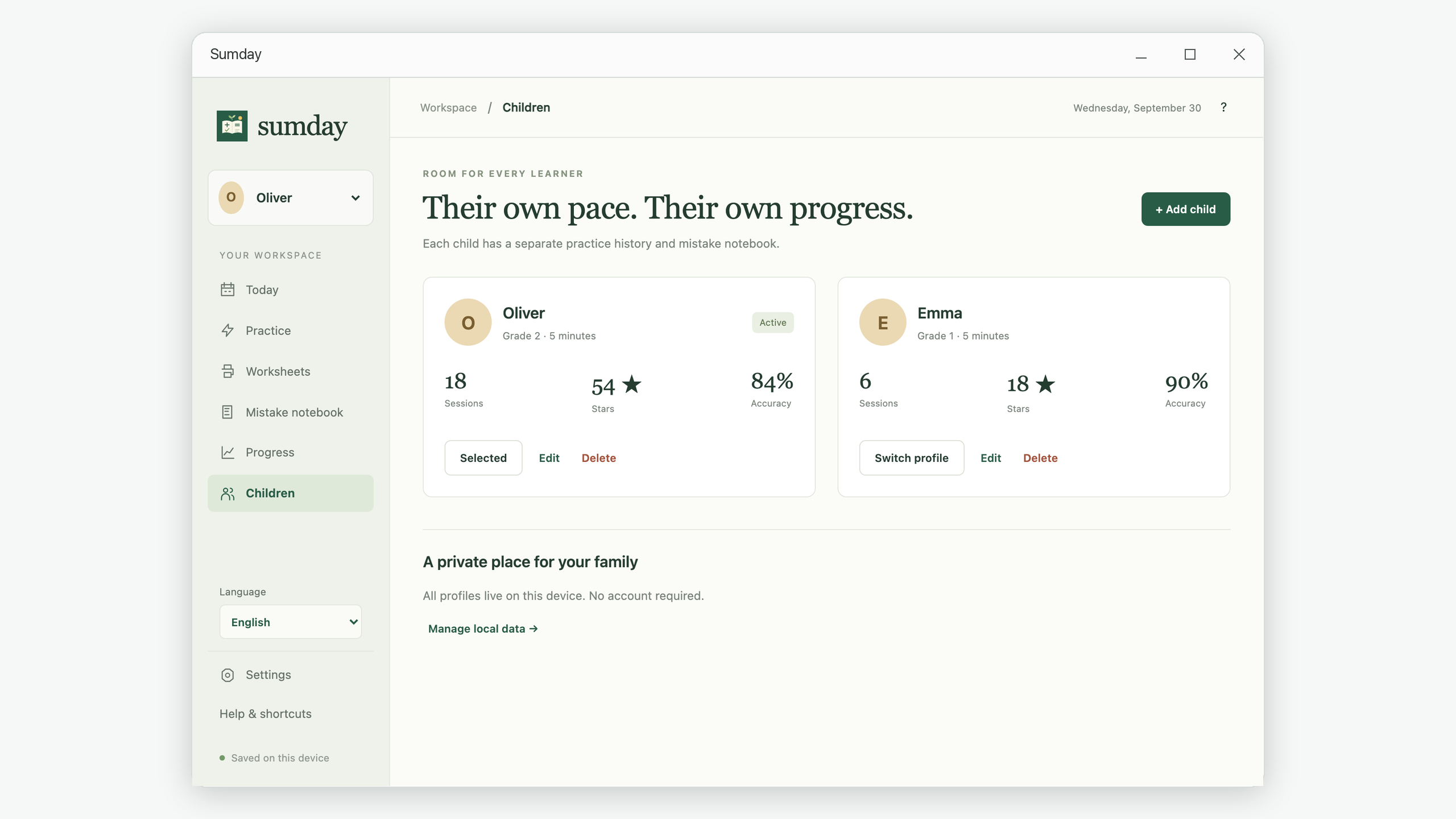
- Create the first child’s profile with a name or nickname, school grade, and daily practice goal.
- Open Children, choose Add child, and create the second profile.
- Use Switch profile on a child’s card, or the child selector in the navigation, before starting practice.
- Check the name shown on the practice screen. Do this again when someone else takes a turn.
- Open Progress for the selected child when you want to review their sessions.
Practice settings are shared preferences for the device. Switching profiles does not automatically restore a separate saved exercise configuration for each child. Open Practice and check the number range, question types, and count when the next child needs a different challenge.
Grades help you set up a profile; they do not replace your choice of exercise. If one child is practicing borrowing and the other is starting multiplication, set up those tasks explicitly rather than comparing their overall scores.
2. Know what an accuracy percentage includes
Sumday calculates accuracy from correct and incorrect submitted answers. Skipped and unanswered questions are excluded. For example, a session with six correct answers, two wrong answers, and two skips has:
Answered questions: 6 + 2 = 8
Accuracy: 6 ÷ 8 × 100 = 75%
Skipped questions: 2, shown separately
The same percentage can describe different experiences. A child who solved a new, harder set slowly is doing a different task from a child repeating familiar facts. Read the question types, attempted count, skips, and time alongside the percentage. A session with no correct-or-incorrect attempts has no accuracy value.
Stars recognize participation and completion in Sumday. They are not a ranking of the children’s mathematical ability. Printed worksheet answers are not automatically graded or added to the screen-practice statistics.
3. Use a weekly check-in with a specific next step
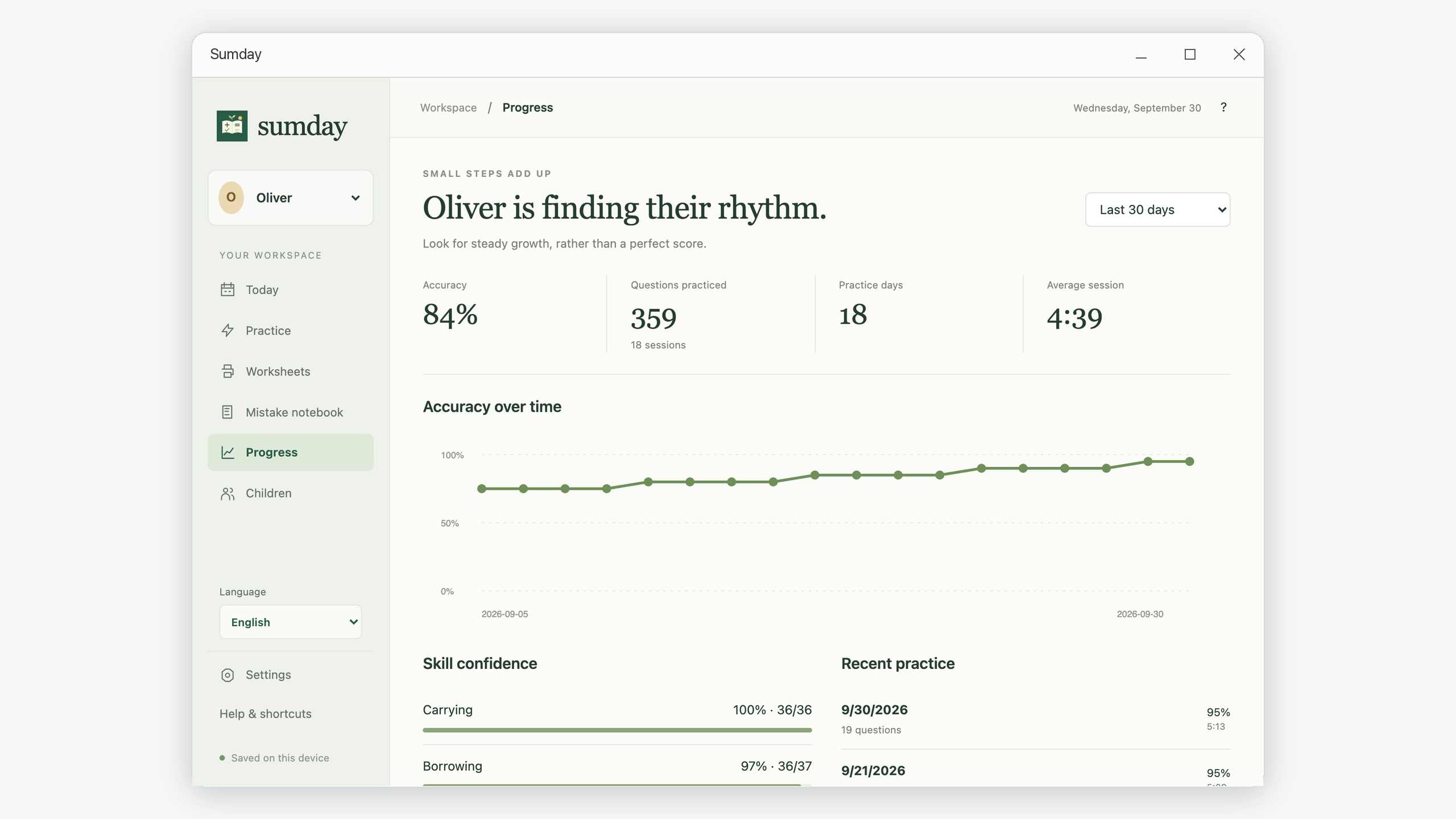
Open Progress and choose a date range, such as Last 7 days. Look at the accuracy chart, skill confidence, and recent sessions. Open a recent session to inspect individual answers. Skill confidence summarizes recorded correct answers for that skill; it is not a curriculum assessment.
Copy this check-in template into a notebook:
| Question | Example note |
|---|---|
| What did we practice? | Subtraction within 100, with borrowing enabled. |
| What looked clearer? | Remembered to reduce the tens after exchanging. |
| What still needs explanation? | Borrowing across a zero needs another worked example. |
| What is the next small task? | Model one question, then review three selected mistakes. |
| What happened on paper? | Keep the dated worksheet beside this note; do not add it to the app totals. |
A five-minute goal can be a starting routine if that suits your household, not a rule every child must meet. Paused time does not keep counting. Completed or ended on-screen sessions contribute to the daily goal; creating or printing a worksheet does not. A longer history can be useful, but one changed exercise at a time makes comparison easier to interpret.
4. Keep a local backup you can recognize
In Settings, choose Export backup and select a folder. A backup includes all child profiles and their records, so give stored copies an understandable date and keep them somewhere you control. Sumday does not automatically synchronize profiles between computers.
When restoring, Merge with existing data adds records while preserving local settings; conflicting profiles may stay separate. Replace all local data restores the backup’s records and settings in place of the current ones. Sumday saves a recovery copy before import, but keep an independent backup too.
Backups are not password-protected by the app. Store them with the same care as other family records. Resetting history affects the active child; deleting a profile removes that profile and its history. Neither action removes copies of files you exported previously.
For the next session, use the one-times-table tutorial for a specific multiplication goal, or the borrowing review guide for a recurring subtraction pattern. A useful progress record should lead to a concrete next exercise.